

Blog
How to add a catalogue or PDF to a digital business card
A catalogue, company deck or price list goes onto a digital business card from the About and links step of the card editor: the deck as a link or a PDF, documents as PDFs. This guide covers the file rules, what visitors see and how opens are tracked in analytics.

Contents
Plans: the company presentation and PDF documents are included in every plan, Free included. Other features, such as QR codes, Save Contact, the contact form and NFC, depend on the plan.
To add a catalogue, a company deck or a price list to a digital business card, you use the About and links step of the card editor. The company presentation goes in as a link or a PDF file; the catalogue, price list and other documents go in as PDFs. Whoever opens your card opens the document from the card page itself, with nothing to install. The question that ends most first meetings, "could you send me your catalogue?", is already answered inside the card.
This guide covers which documents a card can carry, how to prepare the files, what visitors see and how to tell which documents get opened. For the overall card setup, see how to create digital business cards for a team; for a summary of everything a card can do, see the digital business card page.
What can a card carry?
A card has three places for documents, each with its own rules and look:
| Field | How it is added | Limit | On the card page |
|---|---|---|---|
| Company presentation | Link or PDF file | One deck; PDF up to 5 MB | A "Company Presentation" button |
| English presentation | Link or PDF file (in the English step) | One deck; PDF up to 5 MB | Shown on the English version of the card |
| Documents | PDF file plus the name shown on the card | Up to 5 documents, 5 MB each | Document name and size, e.g. "PDF · 1.2 MB" |
The same step also takes a company video link, which appears as a "Company Video" button. Videos are linked, not uploaded.
Which documents belong on a card?
A card is not an archive. A few documents that the other side will actually open after a first meeting are enough:
- Product or service catalogue: usually the most opened document; keep the current edition on the card.
- Price list: put the validity date on the first page. An undated list invites quotes at last season's prices.
- References or case studies: one of the first things a buyer looks for.
- Technical data sheets: for engineering and procurement teams.
- Certificates: the quality and compliance documents that supplier onboarding asks for.
The owner of the card changes the choice. Within one company, each team answers a different question: sales carries the catalogue and a dated price list; supplier relations carries onboarding documents; field service carries short manuals a customer can open next to the equipment; HR carries a short company overview, while internal policies and handbooks stay off a public card.
Give each document one job, and name it the way a reader would search for it: "Product catalogue 2026", not "catalogue_final_v3". On phones the document tiles sit side by side and long names are shortened, so put the descriptive word first.
Step by step: add a presentation and documents
- Open the card: on the Cards screen, edit the card and go to step 3 of the wizard, About and links.
- Add the company presentation: under Company presentation, choose Link or PDF file. For a PDF, upload the file. Choosing a new file later replaces the old one.
- Add documents: press Add PDF, type the name shown on the card (for example "Product catalogue") and pick the file. Repeat for each document; tick Remove and save to take one off.
- Add the English presentation: if you work across borders, make the same choice for the English deck in step 5, English page.
- Save and test: save the card, open the card page on your phone and tap every document once. Check that the names read correctly and each file opens.
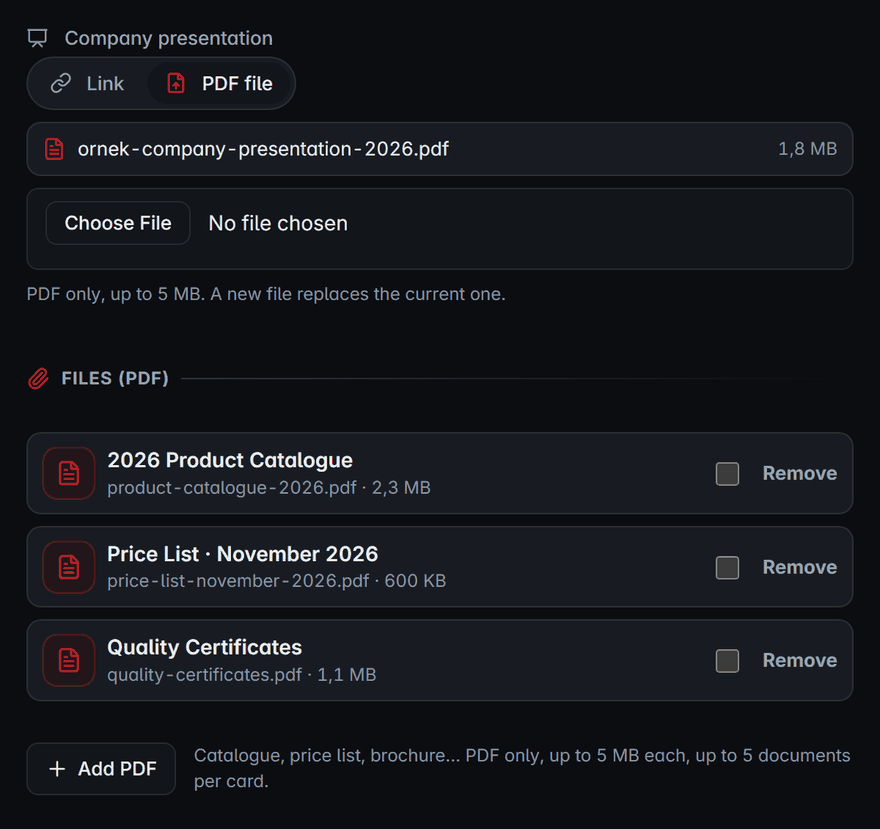
If you Duplicate a card, its presentation and documents are copied too. The copy starts inactive so you can correct the details before publishing it. To give a whole team the same catalogue, set up one card and duplicate it, which is quicker than uploading the file to each card.
Link or PDF?
- PDF file: the file stays with the card and the visitor is not sent to another service. When the deck changes, you upload the new file. Best for decks that change monthly or less often.
- Link: a cloud folder or a page in a presentation tool. Changes at the source show up on the card automatically. Make sure the link is public: a link that asks for a sign-in shows your visitor an empty login screen.
The documents section takes PDFs only. To share a large catalogue as a link instead, use Add an account or link in the same step, choose "Other link" and give it a name such as "Product catalogue".
Preparing the file
- Upload a real PDF: only PDFs are accepted and the content is checked, so a Word or slide file renamed to ".pdf" is rejected. Export it as PDF from its own application.
- The 5 MB limit: high-resolution photos are what usually push a catalogue over it. Exporting at "screen" or "web" quality often brings the size down enough; if not, split the catalogue by product group.
- First page: put the company name, the document title and the date there. On a phone, the first page is where the reader recognises the document.
- Readable on a phone: landscape slides look small on a phone. If there is a simpler mobile edition of the deck, use that one.
- File name: if a visitor saves the document, the suggested name is the name of the file you uploaded, so choose something like "company-product-catalogue-2026.pdf".
What visitors see
On the card page, the presentation, the video and the documents appear as separate tiles next to the other links, and each document shows its size under the name. A tapped document opens in a new tab, in the browser or the phone's PDF viewer; there is no app to install and no account to create.
Documents are served through the card page. The files do not sit in a public folder of the site: a document opens only while its card is published and the company's subscription is valid, and a deactivated card's documents stop opening too. The card is public: anyone who opens it can see its documents, so keep confidential files off it. We cover the privacy side in privacy and security of digital business cards.
A visitor on the English version of the card sees the English presentation. If there is no English presentation, the Turkish one is shown, so the presentation button never disappears for international visitors.
Seeing which documents get opened
The Analytics screen splits card clicks by type: presentation opens count as Presentation and document opens as Document (PDF). Documents are counted together on this screen, not one by one. The same document opened again from the same internet connection within 10 minutes counts once, so the numbers do not inflate. The identity of the visitor is not shown. See digital business card analytics for how to read the figures.
The figure tells you whether the documents get noticed. If the card is opened often but documents are not, review their names and order, and put the one visitors need first at the top.
At meetings and trade fairs
A conversation at a stand or a client visit usually ends with "I'll email you the catalogue", and the email slips to the next day. A sales rep whose card carries the catalogue shares the card, and the other side opens the catalogue on the spot. The follow-up email needs only the card link, not an attachment. For the full preparation, see digital business cards at trade fairs and events.
When the price list changes, upload the new PDF. The card address stays the same, so printed QR codes, email signatures and NFC tags keep pointing to the same card, and everyone sees the current document.
Common mistakes
- An undated price list: it keeps old prices in circulation.
- A presentation link that needs a sign-in: test it in a browser where you are not logged in.
- Meaningless document names: nobody opens "File1".
- Everything in one file: split documents by purpose; a card holds up to five.
- Old editions left on the card: add "replace the file on the cards" to your catalogue release checklist.
Frequently asked questions
Can I add Word, Excel or PowerPoint files?
No. Cards accept PDF only. Export the file as PDF from its application so it looks the same on every phone.
My catalogue is larger than 5 MB. What should I do?
Export it again at screen quality first. If it still does not fit, split it by product group, or keep it in a public cloud folder and add it as an "Other link" under More accounts and links.
Do I need to reshare the card after replacing a document?
No. The card address stays the same; the link, QR code and NFC tag you already shared show the new document.
Which plans include documents?
The company presentation and PDF documents are included in every plan, Free included. QR codes, Save Contact, the contact form and NFC are in Starter and higher; see pricing to compare plans.


